


Step-by-Step Tutorial: Creating Your First UML Diagram with Visual Paradigm’s AI UML Generator
If you’re new to UML or just tired of wrestling with complex diagramming software, Visual Paradigm’s AI UML generator makes it incredibly simple: describe what you need in plain English, and it builds a professional diagram for you in seconds. No need to learn toolbar icons, drag elements, or fix layouts manually—this tutorial walks you through your very first diagram from start to finish.
By the end, you’ll have created a complete, editable UML diagram and understand how to use Visual Paradigm’s powerful AI features to speed up your modeling work. Let’s get started with a practical example: building a basic **use case diagram** for an online library system.
Before You Begin: Quick Setup
Visual Paradigm offers multiple ways to generate UML diagrams—no heavy downloads required for your first try:
- Go to the Web Apps (browser-based, no install): Open your browser and navigate to Visual Paradigm Online or the AI modeling section.
- Alternatively, try the AI Visual Modeling Chatbot for the most conversational experience—just start chatting your description.
- If you prefer offline/full power later, download VP Desktop, but web or chatbot is perfect for beginners.
For this tutorial, we’ll use VP Desktop.
Step 1: Choose Your Starting Point
- Download Visual Paradigm
- Start it
- Select Tools > AI Diagram Generate from the main menu to open the AI Diagram Generation dialog box.
Step 2: Write a Clear Description (Your Prompt)
The quality of the diagram depends on how clearly you describe the system. For our example, type or paste this prompt:
“Create a use case diagram for an online library system. Actors: Member, Librarian, Guest. Main use cases: Member borrows book, Member returns book, Member searches catalog, Member reserves book, Librarian adds new book, Librarian manages member accounts, Guest browses catalog. Include relationships like extends (reserve if book is borrowed) and includes (borrow includes search).”
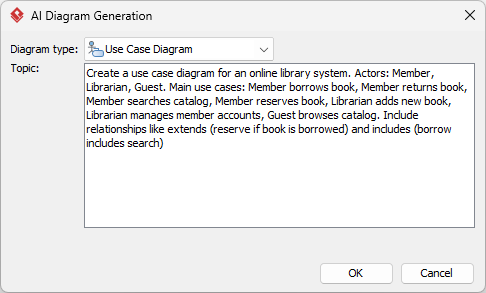
Tips for better results:
- Start with actors and their goals
- Use action verbs (borrows, returns, searches)
- Mention relationships (extends, includes, generalization) if important
- Keep it concise but specific—1–3 sentences usually works best for starters
Step 3: Generate the Diagram
Click “OK”.
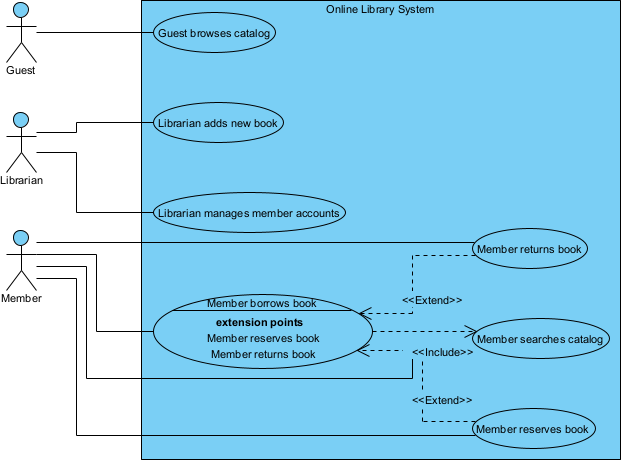
Visual Paradigm’s AI analyzes your text and creates:
- Ovals for use cases
- Stick figures for actors
- Correct associations, includes/extends arrows
- Automatic layout (no overlapping or messy placement)
You’ll see the diagram appear almost instantly—fully UML 2.x compliant and ready to use.
Step 4: Refine and Customize (Light Editing)
Visual Paradigm makes tweaks easy:
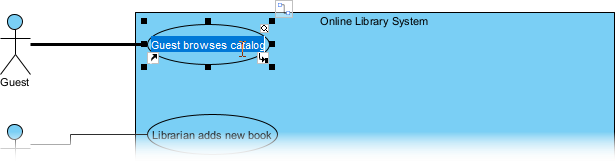
- Drag actors/use cases to reposition
- Double-click to rename or add notes
- Add colors or stereotypes via the properties panel
- Use the toolbar for quick additions (if you want manual control after AI)
Most beginners only need minor adjustments—the AI gets 90%+ right on good prompts.
Once happy:
- Save the project (cloud sync across platforms)
- Export: PNG, SVG, PDF, or even embed code for websites
- Share link (collaborative editing if team plan)
Congratulations—You’ve Created Your First Diagram!
You’ve just gone from a text description to a professional UML use case diagram in under 10 minutes—without learning complex menus or notation rules first. This is the power of Visual Paradigm’s AI UML generator: fast, accurate, and beginner-friendly.
Next steps to build confidence:
- Try a sequence diagram: “User logs in to online library, system validates credentials, returns session.”
- Experiment with activity diagrams for workflows
- Save your projects and revisit them—watch how fast you improve

 English
 Arabic
 Chinese (Simplified)
 Dutch
Dutch French
 German
 Italian
 Portuguese
 Russian
 Spanish